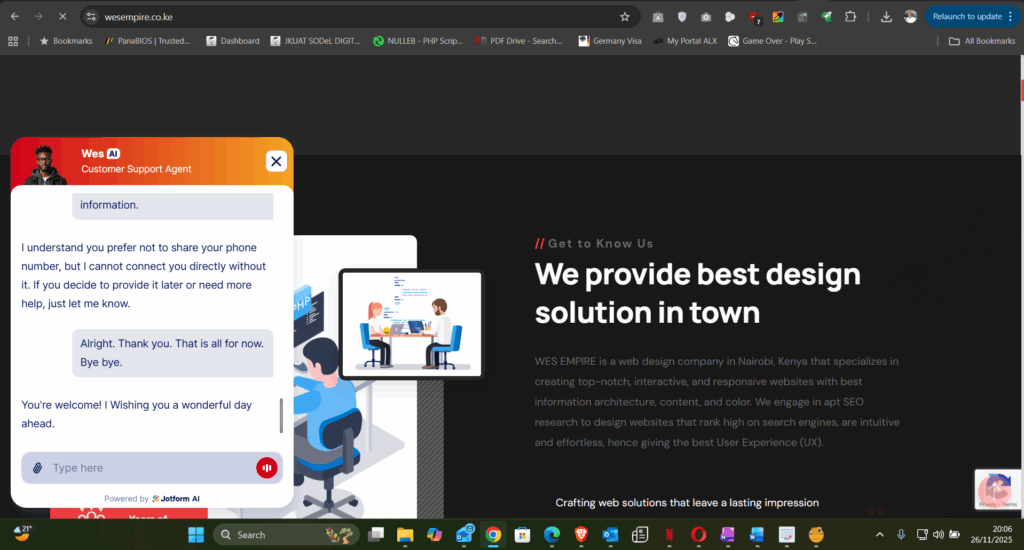
Artificial intelligence is transforming how websites interact with visitors. Whether you want to automate customer support, answer frequently asked questions, or enhance user experience, an AI assistant can make your website more responsive and engaging.
In today’s tutorial, we explore how to integrate a fully functional AI assistant into any website using JotForm AI. The process is simple, code-free, and includes advanced features like voice chat, custom knowledge bases, and domain-specific training.
What Is JotForm AI?
JotForm AI is a powerful tool that allows you to embed an intelligent assistant on your website.
It can:
- Answer visitor questions
- Pull responses from your custom knowledge base
- Provide voice-enabled interactions
- Learn from your documents, FAQs, and URLs
- Offer 24/7 automated support
- Enhance user engagement and customer experience
Best of all, no coding is required — everything is handled through a clean interface.
Step-by-Step Guide to Adding an AI Assistant to Your Website
Step 1 — Install the JotForm AI Plugin/Widget
Start by logging into JotForm and navigating to the AI Assistant section.
From there, select the AI widget and add it to your workspace.
This plugin will generate the embed code you will later add to your website.
Step 2 — Create and Configure Your AI Assistant
Give your assistant a name and select the type of tasks you want it to handle.
You can customize:
- Tone of voice
- Answer style
- Preferred behavior
- Interaction flow
JotForm provides prebuilt templates depending on your use case, including customer support, onboarding, general Q&A, and more.
Step 3 — Build Your Knowledge Base
This is where the AI learns everything it needs to support your visitors.
You can upload:
- PDF or Word documents
- Company manuals
- FAQs
- Website links
- Help articles
- Policy documents
The AI will analyze the content and use it to generate accurate, context-aware answers.
Step 4 — Enable Voice Chat
One standout feature in JotForm AI is its built-in voice support.
When enabled, visitors can speak directly to your AI assistant instead of typing.
This makes interactions faster, smoother, and more natural, especially for mobile users.
Step 5 — Embed the AI Assistant on Your Website
Once everything is set up, JotForm AI will generate an embed script.
Place the code inside your website’s:
- HTML footer
- WordPress Custom HTML block
- Page builder embed element
- Or any website that supports JavaScript
The assistant will instantly appear on your website, ready for use.
Why You Should Add an AI Assistant to Your Website
Integrating an AI assistant can improve:
- Customer satisfaction
- Website engagement
- Lead generation
- Response time
- 24/7 support availability
- Business automation
It’s a valuable tool for service providers, eCommerce sites, agencies, and educational platforms.
Final Thoughts
JotForm AI makes it incredibly easy to add a smart, voice-enabled assistant to your website. With just a few steps, you can automate support and give your users a seamless experience.
Whether you’re a business owner, freelancer, or web developer, this tool is worth exploring.